


The User Events Log in WP Ghost records who did what in your site’s dashboard, when, and from which IP. You can filter and search it. WP Ghost Premium also copies it to the WP Ghost Dashboard, where you can set email alerts.
What the User Events Log records

How to activate the User Events Log
- Go to WP Ghost > Logs > Settings.
- Enable Log Users Events.
- WP Ghost Premium: Enable Cloud Storage for Events Log is on by default and sends a copy of each event to your WP Ghost Dashboard, kept for 30 days. Switch it off to keep the events only on your site.
- WP Ghost Premium, optional: select the roles to log under Log User Roles. Leave it empty to log all roles.
- Click Save.
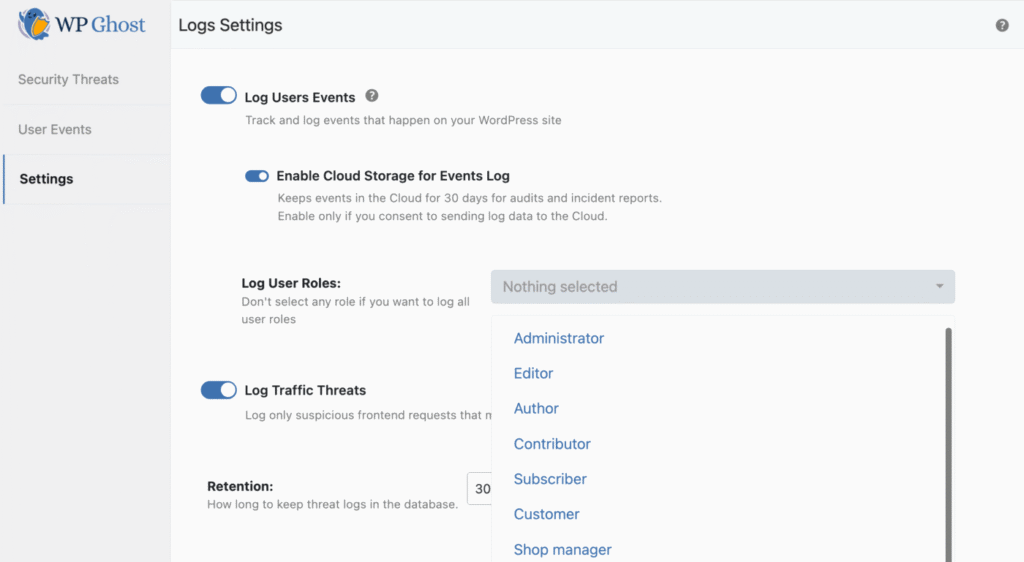
You can select several roles, for example Subscribers and Contributors without Administrators.
What gets logged
The Events Log records security-relevant dashboard activity for the user roles you selected. Every entry captures what happened and who did it:
| Area | Events |
|---|---|
| Logins | Successful logins, failed login attempts and the IP of each attempt |
| Content | Post and page deletions, attachment uploads and deletions |
| Plugins and themes | Plugin activations, deactivations and deletions, theme and plugin updates, WordPress core updates |
| Settings | Changes on the WordPress settings screens |
Each row of the report shows:
- User Action, the event
- Location, the IP and country
- Details, the path, username, role and plugin or theme name
- User, who triggered the action
- Date
Reading the Events Log report
View events at WP Ghost > Logs > User Events.
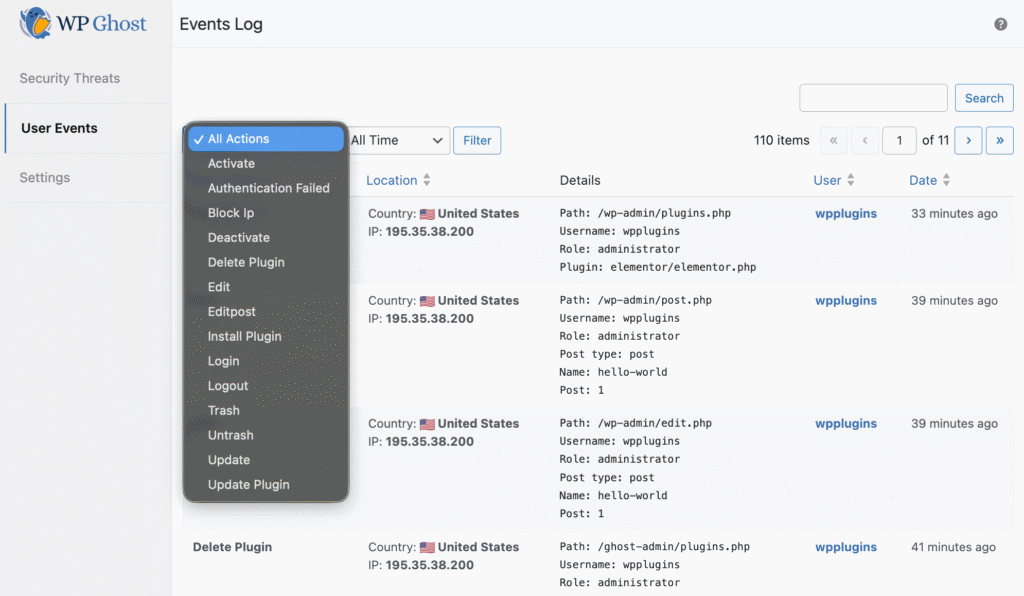
Above the table, choose an event type (All Actions), a country (All Countries) or a period (All Time), then click Filter. Use Search to find entries by IP address, path or event name.
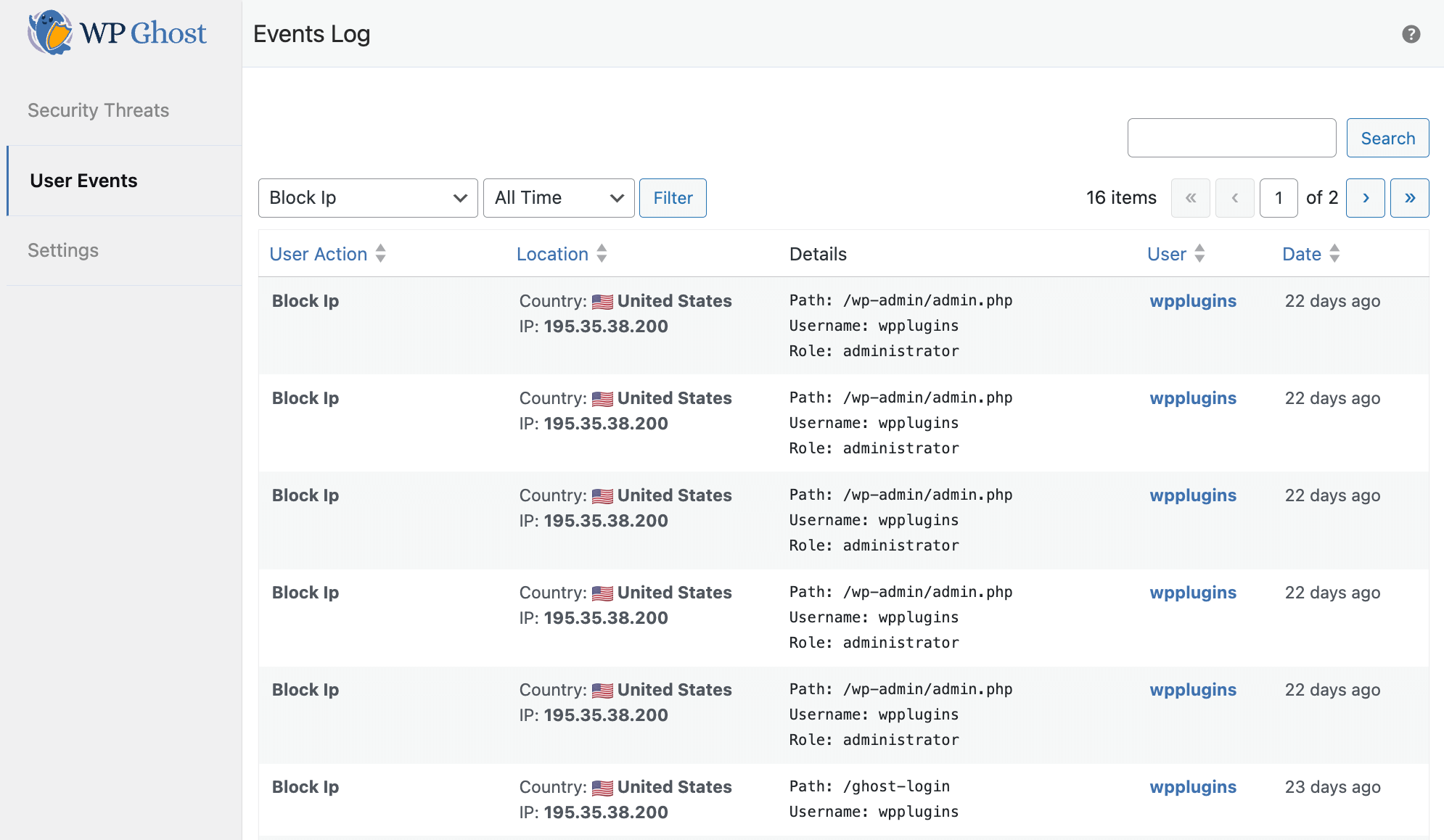
A search runs inside the filtered list, so clear the filters to search the whole log.
Why track user activity
An activity log is part of your hack prevention setup. It helps most on sites with several users, freelancers or client access.
If an admin account starts deleting posts, deactivating security plugins or installing unknown themes, the log shows what happened and when. You can trace the activity to a user and an IP address.
The log records successful and failed logins with the IP of each attempt, so you can see when someone targets your login page. The local report keeps failed logins for usernames that exist on your site. Brute Force Protection blocks the IPs that keep trying.
Audit freelancer and developer activity. When several people have dashboard access, the log shows who activated a plugin, updated a theme or changed settings, and when.
Cloud storage and the WP Ghost Dashboard
When Enable Cloud Storage for Events Log is on, WP Ghost sends each event to the WP Ghost Dashboard. Click Go to User Events Cloud Log under the local report to open it. Cloud logs are kept for 30 days and then permanently deleted.
If your site is compromised and the local data is changed or deleted, the cloud copy keeps the activity log for the investigation. The Dashboard shows the same details as the local report: website URL, location, action details and date (UTC).

Cloud logs are deleted after 30 days. Use the Export button on the WP Ghost Dashboard to download a copy before that. In WP Ghost Premium, Export CSV below the local report downloads the local log.
Email alerts
Email alerts tell you about critical events. You set them in the WP Ghost Dashboard, and they need Enable Cloud Storage for Events Log on.
Available alert types:
| Alert | You get an email when |
|---|---|
| Login from different IPs | the same user logs in from several IP addresses |
| Brute Force IP block | Brute Force Protection blocks an IP (the feature must be on) |
| Too many failed logins | a user passes 5 failed login attempts, with or without Brute Force Protection |
| Plugin deleted | a plugin is deleted from the site |
| Post deleted | a post is deleted from the site |
To create an alert:
- Open Email Alerts in your WP Ghost Dashboard.
- Click +New.
- Select the website and the alert type.
- Click Submit.
Repeat the steps for each alert.

Notification email: By default, alerts go to your WP Ghost account notification email (set in Profile > Settings). You can set a different email for each connected site in Connected Sites → edit icon → custom email. Per-site settings override the default.
To delete an alert, click the delete icon next to it in the Email Alerts panel.
GDPR and data storage
When the Events Log is on, events are stored in your WordPress database, in the table hmwp_logs with your table prefix (for example wp_hmwp_logs). They are kept for the Retention period in WP Ghost > Logs > Settings: 7 days by default, or 14 or 30 days in WP Ghost Premium.
If Cloud Storage is enabled, data is sent to the WP Ghost Dashboard and stored for 30 days. After this period, data is permanently deleted. Each event holds the action name, the username and role, the IP address and the page path. It also holds the ID, type or name of the post, plugin, theme or attachment the action touched. Each piece of information is saved only when a user triggers an action. The data is not shared with third parties and not used for marketing.
The Logs screen says it next to the switch: “Enable only if you consent to sending log data to the Cloud.”
Frequently asked questions
Is this a Premium feature?
The User Events Log itself is in the free and premium versions. WP Ghost Premium adds Log User Roles, Export CSV, the cloud copy in the WP Ghost Dashboard (kept for 30 days) and the email alerts that depend on it.
Is this the same as the Security Threats Log?
No. The User Events Log records what your logged-in users do in the dashboard. The Security Threats Log records malicious requests from bots and attackers.
Does this log frontend user activity?
No. The Events Log only tracks security-relevant dashboard actions: logins, plugin changes, post deletions, settings modifications, and similar administrative events. It does not log everyday frontend browsing like clicking menus, viewing pages, or adding items to a WooCommerce cart.
Does this work with WooCommerce?
Yes. The log records WooCommerce admin actions (product changes, order changes, plugin updates) like any other dashboard activity. See the WooCommerce security guide.
Does WP Ghost modify WordPress core files?
No. Event logging uses WP Ghost’s own database table and WordPress hooks. No core files are modified. Disabling the feature stops logging instantly.
Related tutorials
Use the Events Log alongside these security features: